Spreadsheet Metadata for Analysts: Protecting Source-of-Data Attribution
 Jun, 3 2026
You send a spreadsheet to your boss or a client. They look at the numbers and ask, "Where did this come from?" You pause. You know you pulled it from the CRM last Tuesday, but you can't remember if you filtered out test accounts or included pending refunds. The file itself doesn't say. It just sits there, silent on its origins.
This is the hidden crisis of modern analytics. We treat spreadsheets as final destinations, but they are often fragile copies of truth. Without explicit spreadsheet metadata that captures the context, origin, and transformation history of the data, your analysis becomes a black box. For analysts, protecting source-of-data attribution isn't about bureaucracy; it's about survival. If you can't prove where a number came from, you can't defend the insight it produces.
The Silent Killers of Data Provenance
We lose track of our data sources because spreadsheets are designed for flexibility, not governance. When you copy-paste a table from a database into Excel, you strip away the schema, the constraints, and the lineage. What remains is just colored cells.
Consider what happens in a typical workflow:
- The Copy-Paste Trap: You export a query result and paste it into a new workbook. The original SQL code, the filter parameters, and the extraction timestamp vanish. Two weeks later, even you don't know if that 'Total Sales' figure includes tax or not.
- The Identifier Disaster: You import customer codes like '00123'. Excel, being helpful, sees leading zeros and assumes they are unnecessary. It converts them to '123'. Now, when you try to join this sheet back to the master database, nothing matches. The link to the source is broken.
- The Mixed-Type Mess: A column meant for dates contains some text notes ('TBD', 'Pending'). This forces Excel to treat the whole column as text. Sorting fails. Filtering breaks. The connection to the clean source system is lost in translation.
These aren't just annoyances; they are failures of attribution. When the structure degrades, the story behind the data dies with it.
What Metadata Actually Means for Spreadsheets
In the world of databases, metadata is enforced by the system. In spreadsheets, it is entirely voluntary. To protect your work, you need to build this layer yourself. Spreadsheet metadata consists of three distinct layers:
- Workbook-Level Context: Who owns this file? What is its purpose? When was the data last refreshed? Which systems fed into it?
- Table-Level Lineage: For each specific table in the workbook, where did the rows come from? Was it a raw extract from the ERP? A manual entry from sales reps? A calculation derived from another sheet?
- Column-Level Definitions: What does 'Net_Revenue' mean here? Is it in USD or EUR? Does it include returns? What is the corresponding field name in the source database?
Without these layers, your spreadsheet is just a pile of numbers. With them, it becomes an auditable asset.
Five Design Patterns to Lock Down Attribution
You don't need expensive software to fix this. You need discipline and a few structural changes to how you build files. Here are five patterns used by senior data analysts to keep their provenance intact.
1. The Dedicated README Sheet
Never bury instructions in cell comments that users might delete. Create a sheet named '_README' or 'Metadata'. This sheet acts as the contract for the entire workbook. Include a table with columns for: Table Name, Source System (e.g., Salesforce, Snowflake), Extract Date, Owner, and Refresh Frequency. If a stakeholder opens your file, this is the first thing they should see. It answers the "where" and "when" before they even touch the data.
2. The Living Data Dictionary
Create a second sheet called 'Data_Dictionary'. List every column used in your analysis. For each column, document:
- Source Field Name: The exact name of the column in the upstream database.
- Definition: A plain-English explanation (e.g., "Gross revenue minus discounts and refunds").
- Unit: Currency, weight, count.
- Allowed Values: If it's a status column, list the valid codes (Active, Closed, Churned).
This prevents the ambiguity of guessing what a cryptic header like 'col_4' or 'val_x' means.
3. Force Text for Identifiers
This is the single most important technical rule. Customer IDs, Product SKUs, Invoice Numbers, and Postal Codes must be treated as text, never as numbers. When importing data via Power Query or CSV, explicitly set the data type to 'Text' for all identifier columns. This preserves leading zeros and prevents scientific notation (e.g., 1.23E+10) from corrupting your keys. If the key is broken, the attribution is broken.
4. Separate Raw from Processed
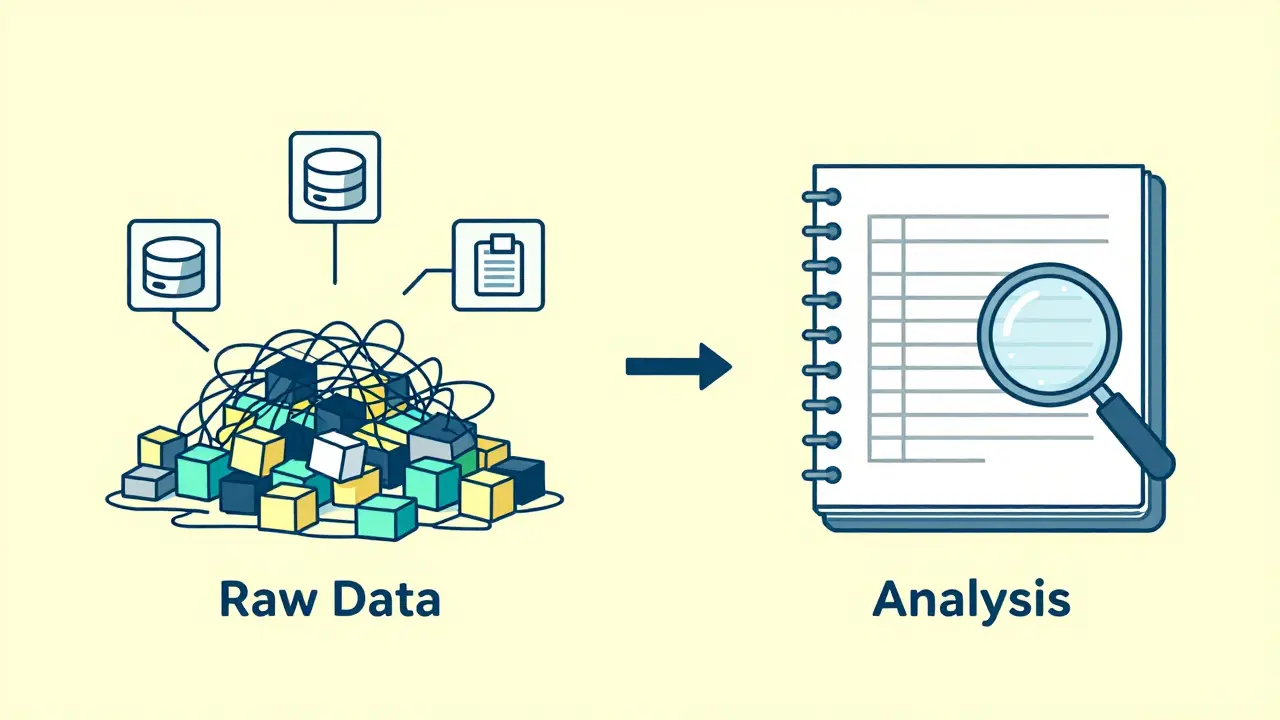
Never overwrite your raw data. Keep a sheet called 'Raw_Data' that contains only the imported records, untouched. Do your calculations, filters, and pivots on separate sheets. Use formulas or Power Query to pull from 'Raw_Data' into your 'Analysis' sheet. This creates a clear chain of custody. If someone questions a number, you can trace it back to the specific row in the raw extract, proving exactly how it was derived.
5. Document Transformations Explicitly
If you create a calculated column, don't just write the formula in the cell. Add a note in your Data Dictionary explaining the logic. For example, instead of just having `=(B2-C2)*D2`, document: "Profit Margin = (Revenue - COGS) / Revenue. Note: COGS excludes shipping costs per Finance Policy v2." This protects you when policies change or when colleagues question why your margin differs from theirs.
Leveraging Modern Tools for Lineage
Excel and Google Sheets have evolved beyond simple grids. Using their advanced features can automate parts of your metadata strategy.
Power Query (Get & Transform) is your best friend for lineage. Instead of copying and pasting, connect directly to your source (SQL Server, API, CSV folder). Every step you take-filtering rows, merging queries, changing types-is recorded in the Power Query editor. This query log *is* your metadata. It shows exactly how the data was shaped. Save this query in the workbook. Anyone can open the Advanced Editor and see the M-code, which serves as a reproducible recipe for your data.
Structured Tables (Ctrl+T in Excel) also help. By converting ranges into official Tables, you give your data a name and a scope. Formulas referencing structured tables (e.g., `Table1[Sales]`) are more readable than cell references (`Sheet1!B2`). This reduces errors when rows are added or deleted, maintaining the integrity of your calculations over time.
Protecting Your Work from Accidental Corruption
Even with great design, human error happens. Someone will inevitably click the wrong cell and change a critical ID or delete a header row. You need controls to prevent this.
- Lock Key Columns: Go to Format > Protection > Lock Cells for your identifier columns and header rows. Then, protect the sheet (Review > Protect Sheet). Allow users to edit only the input areas or unlocked analysis cells. This ensures the structural metadata-the names, the IDs, the definitions-cannot be accidentally altered.
- Data Validation: Use dropdown lists for status fields or category columns. This prevents typos that break joins (e.g., typing 'US' vs 'USA' vs 'United States'). Consistent coding is essential for reliable attribution.
- Version Control: Don't rely on 'Final_Final_v2.xlsx'. Include a version number and last-updated date in your README sheet. Better yet, store your spreadsheets in a cloud environment with version history (SharePoint, OneDrive, Google Drive) so you can revert if metadata gets corrupted.

Cleaning Up Before Sharing
Once your analysis is done, you might need to share the file externally. At this stage, you face a different risk: leaking internal details. Your spreadsheet might contain hidden metadata like the author's name, the company name, revision history, or even tracked changes that reveal internal debates.
While you want to preserve the data attribution (where the numbers came from), you may want to remove the document attribution (who created the file). Microsoft Office has a built-in 'Document Inspector,' but it requires Windows and Office installation. For a cross-platform solution that works on Mac, Linux, and ChromeOS, you can use a browser-based tool like Vaulternal's document metadata remover. It processes the file locally in your browser, stripping out author info, company names, and editing time without uploading your sensitive data to any server. This gives you control over what leaves your organization while keeping the analytical content intact.
Building a Culture of Trust
Protecting source-of-data attribution is not just a technical task; it is a professional standard. When you consistently provide clear metadata, you build trust with your stakeholders. They stop asking, "Is this right?" and start asking, "What does this mean for us?"
Start small. Pick your next report. Add a README sheet. Define your top five columns in a dictionary. Force your IDs to text. You will find that the extra ten minutes spent on metadata saves hours of confusion later. In the end, your reputation as an analyst depends not just on your ability to crunch numbers, but on your ability to explain them.
Why do my customer IDs change when I paste them into Excel?
Excel automatically interprets columns with numbers as numeric data types. This causes it to strip leading zeros (turning '00123' into '123') or convert large numbers into scientific notation (e.g., '1.23E+10'). To prevent this, format the column as 'Text' before pasting, or import the data using Power Query and explicitly set the data type to Text for identifier columns.
What is a data dictionary in a spreadsheet?
A data dictionary is a dedicated sheet or section within a workbook that documents every column used in the analysis. It includes the column name, definition, unit of measure, allowed values, and the corresponding source field name from the original database. It ensures that anyone reading the file understands exactly what each metric represents.
How can I track where my data came from without using complex software?
You can create a simple 'README' sheet in your Excel or Google Sheets workbook. List each table's source system (e.g., Salesforce, ERP), the date the data was extracted, the owner of the file, and any filters applied during extraction. This manual documentation serves as basic metadata that provides clear lineage for your data.
Should I keep raw data and processed data in the same sheet?
No. Best practice is to keep raw, imported data in a separate sheet (e.g., 'Raw_Data') and perform all calculations, filtering, and transformations on other sheets. This preserves the original record and allows you to trace any derived number back to its source row, ensuring accurate attribution and easier debugging.
How do I remove author information and editing history from an Excel file?
You can use Microsoft Office's built-in Document Inspector feature, or for a cross-platform option, use a browser-based tool like Vaulternal's Metadata Remover. These tools strip out hidden properties such as the author name, last modified by, company, and total editing time. Browser-based tools process the file locally, ensuring your data remains private and is not uploaded to any server.